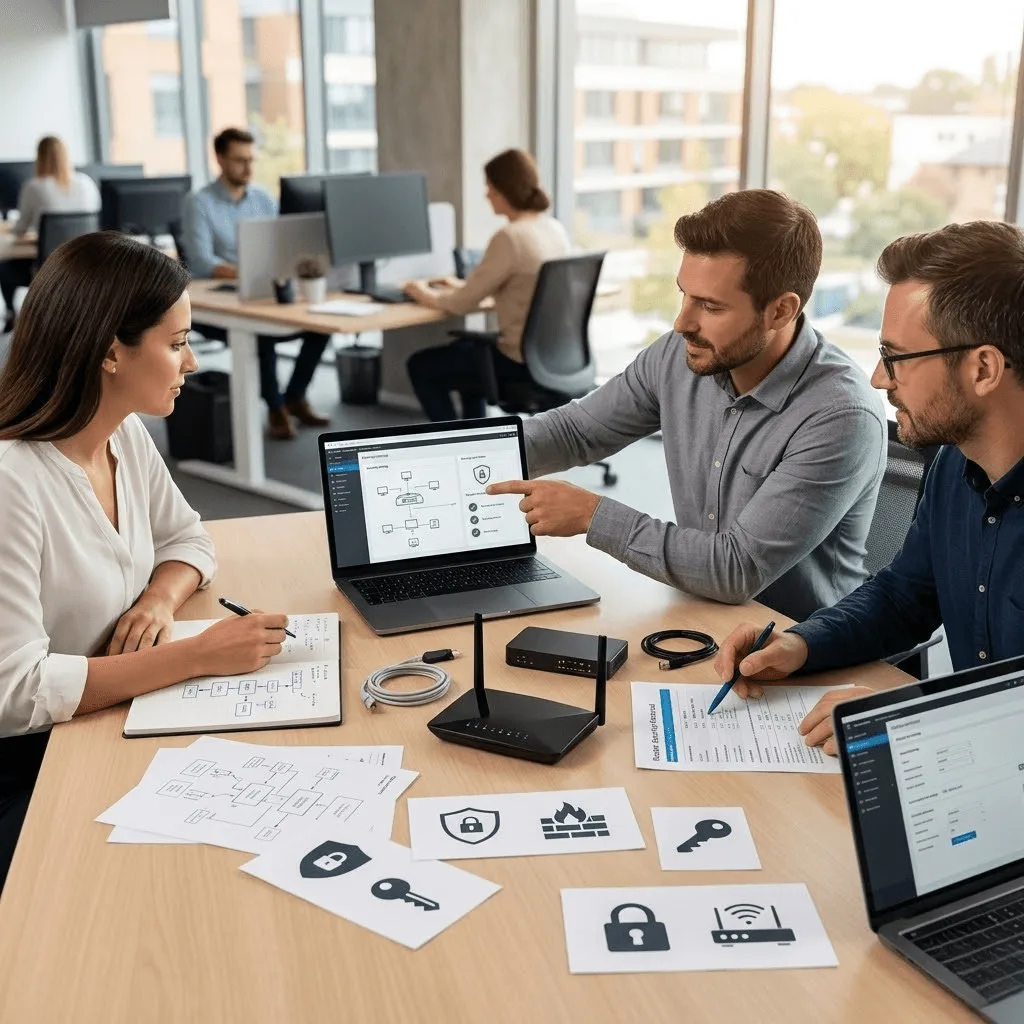
Protect your business Wi-Fi from intruders with vorza360’s professional wireless security settings. We lock down your network with expert encryption and monitoring to keep your data private and safe.
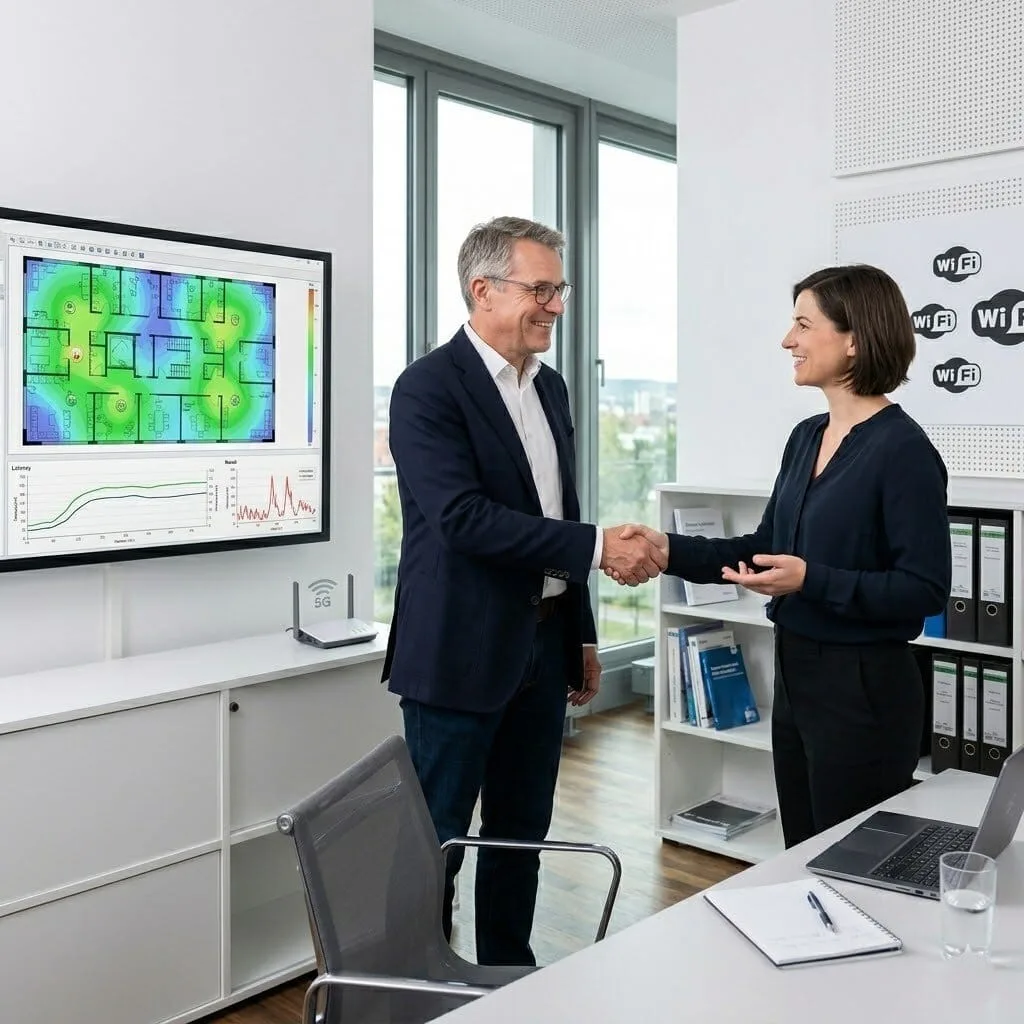
The Challenge: Jan’s company had deployed Omada APs throughout their office but wireless performance was inconsistent, fast in some areas, slow in others, and video calls would stutter when users walked between zones. The APs were present and connected but not performing as expected.
The vorza360 Solution: vorza360 performed a wireless survey of the deployed environment, identified co-channel interference from automatic channel selection landing on the same channels repeatedly. They configured a fixed channel plan, adjusted transmit power, enabled band steering for 5GHz-capable devices, and tuned roaming thresholds for smoother client handoffs.
The Result: The inconsistency was resolved. Video calls no longer stuttered during zone transitions because the improved roaming handed clients off before signal degraded. Jan’s staff experienced consistently good wireless performance across the office rather than the lottery of strong or weak signals depending on location.
Nadia Al-Rashidi (Oman)
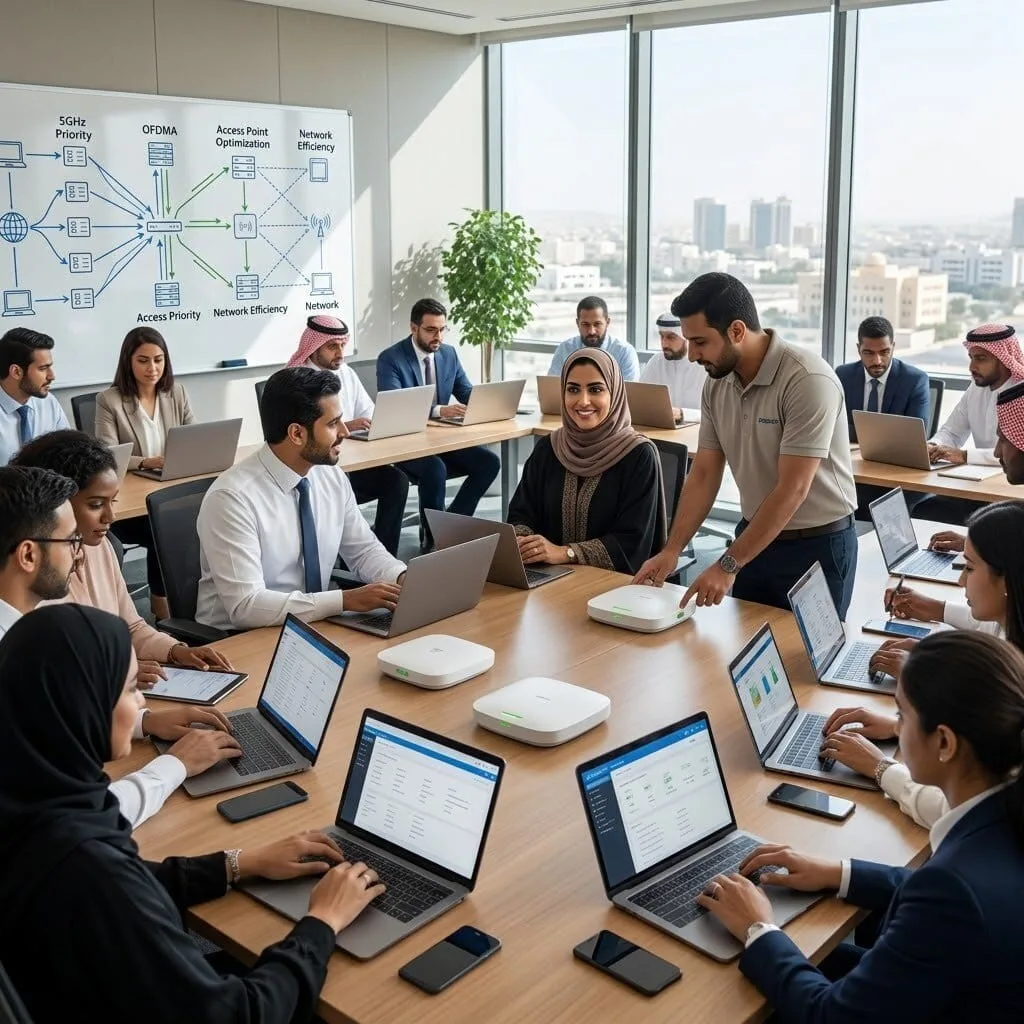
The Challenge: Nadia’s company had a high-density conference room where large meetings with 30+ simultaneous devices caused WiFi to become slow and unreliable. The standard AP installed there was the same model as individual offices, clearly unsuited to the density of use.
The vorza360 Solution: vorza360 replaced the standard AP with a high-density model designed for simultaneous multi-device environments, configured 5GHz priority for the conference room SSID, adjusted OFDMA settings for high-density use, and tuned neighbouring APs’ transmit power to ensure conference room devices connected to their local AP.
The Result: The conference room handled 30+ simultaneous connections without degradation during the next all-company meeting. Nadia’s team stopped dreading large meeting starts, the wireless infrastructure in the conference room was finally matched to the way it was actually used.
Mihai Dumitrescu (Romania)
The Challenge: Mihai’s company had multiple VLANs, but clients frequently connected to the wrong SSID, corporate staff connecting to the guest network for its stronger signal, and guests occasionally reaching the corporate network. Both were security and performance problems.
The vorza360 Solution: vorza360 configured SSID scheduling to suppress the guest SSID outside business hours, implemented minimum RSSI thresholds so devices only connected to APs with adequate signal, renamed SSIDs to remove ambiguity, and enabled Omada Fast Roaming to improve client handoffs between APs.
The Result: Staff connected to the correct corporate SSID consistently, guests connected only to the guest network, and the weak-signal connection problem was resolved by the RSSI threshold. Mihai’s IT team stopped receiving complaints about users being on the wrong network.
Shweta Patel (India)
The Challenge: Shweta’s co-working space had increasing WiFi complaints, slow speeds, dropped connections, difficulty connecting. The space had grown from 20 to 80 desks without any change to the wireless infrastructure, and the original two APs were completely inadequate for the current density.
The vorza360 Solution: vorza360 performed a density assessment, designed a multi-AP layout for 80+ concurrent users, deployed additional Omada APs to achieve the required coverage and capacity, configured the network for high client density, and implemented client isolation on the member SSID for security.
The Result: Co-working space WiFi complaints stopped immediately after the upgraded infrastructure was deployed. Shweta’s members experienced reliable, fast wireless that matched the premium co-working environment she was providing, and client isolation met the security expectation members had for a shared network.
Astrid Bergström (Sweden)
The Challenge: Astrid’s company had Omada APs running with default radio settings, automatic channel and power selection, no band steering, no client connection thresholds. In their dense urban building, the automatic settings were performing poorly and the IT team didn’t know what to adjust.
The vorza360 Solution: vorza360 performed RF analysis, configured a static channel plan on non-overlapping channels avoiding congested neighbouring channels, set appropriate transmit power for their AP density, enabled band steering, and configured minimum RSSI to prevent sticky client connections to distant APs.
The Result: Wireless throughput improved measurably after the optimisation. Astrid’s team had a documented radio configuration with understood rationale rather than defaults they hoped were adequate. The improvement was achieved purely through correct configuration of the hardware they already had.
Chukwudi Madu (Nigeria)
The Challenge: Chukwudi’s company had invested in Omada APs but the WiFi was no better than the consumer router they replaced. Staff were still using mobile data for important tasks, and the IT team had no idea why business-grade hardware wasn’t performing better.
The vorza360 Solution: vorza360 inspected the Omada configuration and found the APs were deployed with defaults: all transmitting at maximum power on the same channels, creating their own interference pattern. Channel and power optimisation, combined with enabling the features that differentiated the business-grade hardware, transformed performance.
The Result: The business-grade hardware delivered business-grade performance once correctly configured. Chukwudi’s staff stopped using mobile data for office work, and the IT team had a clear understanding of the difference between deploying hardware and configuring it correctly, documented so they could maintain the configuration going forward.
vorza360’s Tech Edge
WPA3 Enterprise Configuration
Radius-Based Authentication
MAC Address Filtering
+ 2
More
Rogue AP Detection
Wireless Intrusion Prevention
vorza360’s Tech Edge
WPA3 Enterprise Configuration
We implement the newest and strongest encryption available, moving far beyond the best wireless security setting found in basic routers.
Radius-Based Authentication
Our team sets up a system where every employee uses their own unique login, so you never have to share or change a single Wi-Fi password again.
MAC Address Filtering
We create a “VIP list” for your network, ensuring only pre-approved company devices are allowed to connect.
Rogue AP Detection
We scan for “fake” Wi-Fi points that hackers might set up to trick your employees, shutting them down instantly.
Wireless Intrusion Prevention
Our service acts as a 24/7 digital guard, automatically blocking suspicious devices that try to guess your security keys.
Professional Wireless Security Setup
We handle the technical heavy lifting of setting up wireless security to keep your business private.
Advantages
Switching your network from open or weak passwords to high-strength encryption.
Hiding your network name (SSID) so it doesn't attract unwanted attention.
Configuring the best wireless security settings for home network use for remote staff.
Disabling old, risky features like WPS that hackers love to exploit.
Providing a human-led service that explains your safety in very easy words.
Advanced Router & Gateway Hardening
We fine-tune your hardware to ensure your wireless security settings router is rock solid.
Advantages
Changing default admin passwords that come from the factory.
Configuring TP-link wireless router security settings for peak business protection.
Updating your router's software (firmware) to fix the latest security holes.
Setting up secure "tunnels" (VPNs) for staff who need to connect from outside.
Delivering a managed service that monitors your router's health every day.
Managed TP-Link Security Solutions
We specialize in wireless security settings TP-link to give your office professional-grade safety.
Advantages
Syncing your TP-link wireless router security settings with your office user list.
Setting up "Guest Isolation" so visitors can't see your company’s private files.
Scheduling Wi-Fi "off hours" to stop hackers from trying to enter at night.
Managing the "Omada" security suite for centralized, multi-office protection.
Acting as your dedicated partners to manage all your TP-Link equipment.
LAN & Device Protection Services
We secure the “invisible” paths where your data travels, providing the best security settings for wireless LAN.
Advantages
Isolating smart devices (like cameras or printers) from your main computers.
Setting up "Timed Access" for temporary contractors or guests.
Encrypting the data that travels through the air so it can't be "overheard."
Running regular scans to find and fix any new weak spots in your Wi-Fi.
Offering expert guidance on the best wireless router security settings for your size.
Employee Access & Password Management
We make it easy for your team to stay safe without needing to remember complex codes.
Advantages
Implementing "One-Click" secure login for all your company laptops.
Setting up automatic Wi-Fi disconnection for employees who leave the company.
Teaching your team how to set up wireless security basics for travel.
Managing your security keys so you never have to reset your Wi-Fi again.
Providing a friendly support team to help with any login issues instantly.
Professional Wireless Security Setup
We handle the technical heavy lifting of setting up wireless security to keep your business private.
ADVANTAGES
Switching your network from open or weak passwords to high-strength encryption.
Hiding your network name (SSID) so it doesn't attract unwanted attention.
Configuring the best wireless security settings for home network use for remote staff.
Disabling old, risky features like WPS that hackers love to exploit.
Providing a human-led service that explains your safety in very easy words.
Advanced Router & Gateway Hardening
We fine-tune your hardware to ensure your wireless security settings router is rock solid.
ADVANTAGES
Changing default admin passwords that come from the factory.
Updating your router's software (firmware) to fix the latest security holes.
Configuring TP-link wireless router security settings for peak business protection.
Setting up secure "tunnels" (VPNs) for staff who need to connect from outside.
Delivering a managed service that monitors your router's health every day.
Managed TP-Link Security Solutions
We specialize in wireless security settings TP-link to give your office professional-grade safety.
ADVANTAGES
Syncing your TP-link wireless router security settings with your office user list.
Setting up "Guest Isolation" so visitors can't see your company’s private files.
Scheduling Wi-Fi "off hours" to stop hackers from trying to enter at night.
Managing the "Omada" security suite for centralized, multi-office protection.
Acting as your dedicated partners to manage all your TP-Link equipment.
LAN & Device Protection Services
We secure the “invisible” paths where your data travels, providing the best security settings for wireless LAN.
ADVANTAGES
Isolating smart devices (like cameras or printers) from your main computers.
Setting up "Timed Access" for temporary contractors or guests.
Encrypting the data that travels through the air so it can't be "overheard."
Running regular scans to find and fix any new weak spots in your Wi-Fi.
Offering expert guidance on the best wireless router security settings for your size.
Employee Access & Password Management
We make it easy for your team to stay safe without needing to remember complex codes.
ADVANTAGES
Implementing "One-Click" secure login for all your company laptops.
Setting up automatic Wi-Fi disconnection for employees who leave the company.
Teaching your team how to set up wireless security basics for travel.
Managing your security keys so you never have to reset your Wi-Fi again.
Providing a friendly support team to help with any login issues instantly.
Here is what our Clients are saying About us
Mikael Lindqvist (Sweden)
Our wireless network was using WPA2-Personal with a shared password that half the town probably knew by now. vorza360 migrated us to WPA2-Enterprise with RADIUS authentication so each user has individual credentials. Onboarding and offboarding wireless access is now properly controlled.
Dina Khalil (Egypt)
vorza360 hardened our Omada wireless security settings comprehensively, WPA3 where supported, management frame protection enabled, rogue AP detection configured, and minimum RSSI thresholds set to prevent sticky client issues. A thorough security review that covered aspects we hadn’t even considered.
Luboš Procházka (Czech Republic)
After a security audit flagged our wireless configuration as inadequate, we brought in vorza360 to fix it. They implemented WPA3, disabled legacy protocols, set up wireless intrusion detection, and configured band steering correctly. The auditors were satisfied with every change made.
Sneha Kulkarni (India)
vorza360 implemented 802.1X authentication on our Omada corporate SSID using our existing NPS server for RADIUS. The integration required careful configuration on both the Omada controller and the NPS side, vorza360 handled both ends and the whole thing worked cleanly from the first test.
Lars Poulsen (Denmark)
We’d had an incident where someone had connected an unauthorised device to our wireless and exfiltrated data. vorza360 implemented rogue AP detection, client isolation on appropriate SSIDs, and MAC-based access controls as an additional layer. Multiple barriers in place where there had been almost none.
Ngozi Adeyemi (Nigeria)
vorza360 configured our Omada APs with proper management VLAN isolation so the AP management interface is completely separate from user traffic VLANs. A small configuration detail that significantly reduces the attack surface of our wireless infrastructure.
More about Omada (TP-Link)
Omada Cloud Access Configuration
Manage your business network from anywhere in the world with vorza360’s omada cloud…
Got questions? We’ve got answers. Find everything you need to know about using our platform, plans, and features
What wireless security settings does vorza360 configure on a TP-Link Omada network?
vorza360 implements a comprehensive set of wireless security configurations on every Omada network deployment. At the encryption layer, we configure WPA3-Personal for networks supporting modern devices (providing stronger protection against offline dictionary attacks than WPA2) or WPA2/WPA3 mixed mode for environments with a mix of new and legacy devices. At the network layer, we implement VLAN segmentation to isolate different user groups, enable client isolation on guest networks to prevent device-to-device communication, and configure the Omada gateway’s firewall rules to restrict cross-VLAN traffic appropriately. We enable rogue AP detection to alert on unauthorized access points that might be attempting evil-twin or deauthentication attacks. We configure management VLAN separation so network management traffic is isolated from user data traffic. We disable legacy insecure protocols (WEP, WPA-TKIP) entirely. And we implement MAC address filtering as an additional layer for networks with known, stable device inventories.
What is the difference between WPA2 and WPA3 and which does vorza360 recommend?
WPA2 (Wi-Fi Protected Access 2) has been the standard wireless security protocol since 2004 and uses AES encryption with CCMP. It is secure when used with strong passphrases but is vulnerable to offline dictionary attacks, an attacker who captures the WPA2 handshake can attempt to crack the passphrase offline at their own pace. WPA3 (Wi-Fi Protected Access 3) introduced in 2018 uses Simultaneous Authentication of Equals (SAE) instead of WPA2’s PSK exchange, which prevents offline dictionary attacks, even if an attacker captures the connection attempt, they cannot crack the passphrase offline. WPA3 also provides forward secrecy, meaning each session uses unique encryption keys so past traffic cannot be decrypted even if the passphrase is later compromised. vorza360 recommends WPA3 for all new deployments where device compatibility allows. For networks with older devices that do not support WPA3, we configure WPA2/WPA3 Transition Mode which supports both protocols simultaneously.
How does vorza360 protect an Omada Wi-Fi network from unauthorized access point attacks?
Rogue access point attacks, where an attacker sets up an unauthorized Wi-Fi network mimicking your legitimate network to intercept traffic or credentials, are a real threat in business environments. vorza360 protects Omada networks against rogue AP attacks through the controller’s built-in Rogue AP Detection feature, which scans the RF environment and reports any access points not registered to your Omada controller that are broadcasting your network’s SSID. We configure the detection scan interval and alert notifications so our monitoring team is notified immediately if a rogue AP is detected. We also implement 802.11w Management Frame Protection, which cryptographically authenticates management frames to prevent deauthentication attacks that can force devices off the network. For environments with heightened security requirements, we configure additional protections including MAC-based access control and RADIUS-based 802.1X authentication that requires a valid certificate or credential for Wi-Fi access.
How does vorza360 configure 802.1X (enterprise) authentication for TP-Link Omada networks?
802.1X enterprise authentication is the most secure wireless authentication method available, instead of sharing a single passphrase among all users, each user authenticates with their own unique credentials (username/password, digital certificate, or both) verified against a RADIUS server (such as Windows NPS, FreeRADIUS, or a cloud RADIUS service). This provides individual accountability, allows access to be revoked for a specific user without changing the password for everyone, and significantly reduces the risk from credential sharing. vorza360 implements 802.1X authentication on Omada networks by configuring the SSID authentication method as WPA2-Enterprise or WPA3-Enterprise in the Omada controller, pointing to the RADIUS server with the shared secret, and configuring the RADIUS server with the user database and EAP method (typically EAP-TTLS or PEAP). We also configure certificate-based client authentication for the highest security environments where device identity must be verified alongside user identity.
How does vorza360 configure scheduled Wi-Fi availability to enhance security during off-hours?
An active Wi-Fi network during off-hours, evenings, nights, and weekends when the office is empty, provides an unnecessary attack window. Attackers who are physically near the building during these times can attempt to crack Wi-Fi passwords, conduct reconnaissance of network traffic, or attempt connections with minimal risk of detection. vorza360 configures Omada’s SSID scheduling feature to automatically disable specific wireless networks outside of business hours: we define the weekly schedule for each SSID based on your actual business operating hours, configure the controller to disable the SSID according to that schedule, and exempt any SSIDs that genuinely need to remain active 24/7 (such as IoT or security camera SSIDs). This is a simple, low-maintenance security measure that meaningfully reduces the attack surface during the hours when your organization is most vulnerable to undetected network attacks. IT SUPPORT › TP-LINK OMADA › SUBPAGE 06