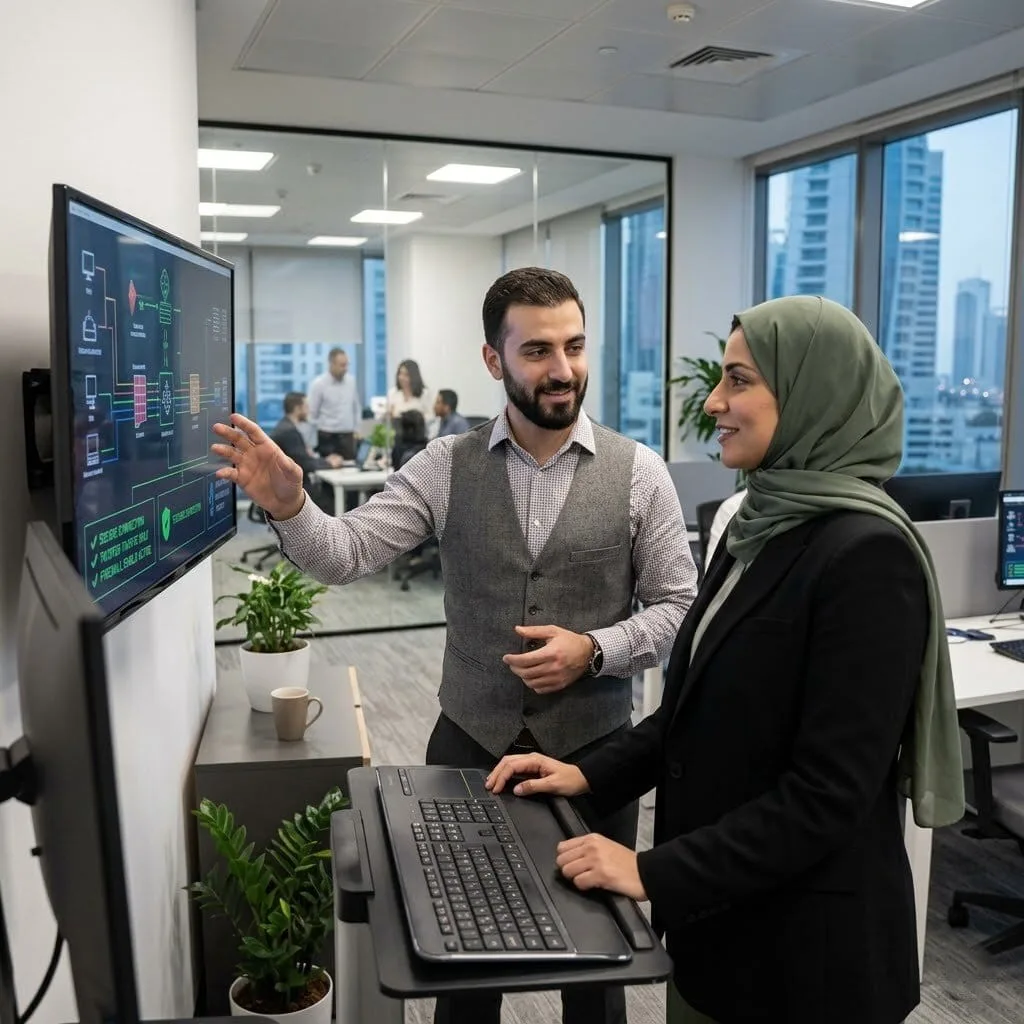
Secure your business network with vorza360’s expert Windows firewall management. We build custom digital shields and lock down your Windows security settings to keep hackers out and your data safe.
The Challenge: Stefan’s company had an “open-door” policy on their network that was becoming a major risk. Departments could see each other’s private folders, and if one employee accidentally downloaded a virus, it could spread to every computer in the office. They needed “digital walls” to keep their data private and safe.
The vorza360 Solution: We implemented Network Isolation Policies using the Windows Firewall. We created custom “Inbound and Outbound Rules” that act as security checkpoints. Now, the Accounting department can’t see the Engineering files, and if one PC has an issue, the firewall blocks it from talking to the rest of the server.
The Result: Stefan’s network is now segmented and secure. By using these “digital walls,” they’ve eliminated the risk of a single mistake taking down the whole company. Their data is organized, and their security is tighter than ever.
Mariam Al-Sayed (Qatar)
The Challenge: Mariam’s organization was struggling with “fake” security warnings on their internal apps. To fix this, they needed to deploy a security certificate system, but they were worried that opening the necessary network “ports” for this would leave their server vulnerable to hackers.
The vorza360 Solution: We provided Advanced Firewall Profiles to protect the new certificate system. We didn’t just open the doors; we used Granular Filtering within the Windows Firewall advanced security settings. This ensured that only trusted office devices could request a security certificate, while blocking all unknown outside traffic.
The Result: The “untrusted” warnings disappeared, and the connection stayed 100% secure. Mariam’s team now has a professional-grade security shield that handles their internal traffic automatically without leaving any “backdoors” open for intruders.
Radu Oprea (Romania)
The Challenge: Radu’s company had a mix of servers, some were up to date, and some were nearly two years behind. This “messy” setup made it easy for modern threats to find a weak spot. They needed a way to lock down their security settings consistently across every machine.
The vorza360 Solution: We applied Security Baseline Hardening across their entire estate. We moved past the default Windows security settings and applied industry-standard “locks” to every server. We integrated their Windows Defender Firewall with a managed update system, ensuring that every “digital shield” was updated at the exact same time.
The Result: Audit findings for unpatched or weak systems stopped completely. Radu’s IT team now has a “bird’s-eye view” of their security, and every server follows the same high-safety rules, making the whole company a much harder target for hackers.
Deepak Nair (India)
The Challenge: When Deepak’s staff started working from home, they used a remote desktop setup that was fast but “leaky.” Because the security settings weren’t tight enough, the company was worried about hackers intercepting the connection or passwords being stolen.
The vorza360 Solution: We rebuilt their remote access with Hardened Connectivity. We configured Windows Firewall Control to only allow connections from verified employee laptops. We also turned on “Attack Surface Reduction” settings, which hide the remote desktop “door” from the public internet so hackers can’t even find it to try and break in.
The Result: Remote work is now both fast and safe. Deepak’s staff can work from anywhere with confidence, knowing their connection is wrapped in a “digital vault” that the IT team monitors 24/7.
Lars Olsen (Denmark)
The Challenge: Lars’s company recently bought a smaller business and had to merge two different computer networks. The two systems had completely different security rules, creating a “security gap” where the two networks met. They needed to unify their defenses without crashing their apps.
The vorza360 Solution: We performed a Safety Scan of both networks and designed a unified Windows Firewall & Security plan. We used “Application Whitelisting”, a creative approach where the firewall only trusts the specific business apps Lars’s team uses. Anything else, including unknown software or viruses, is blocked by default.
The Result: The two companies merged their tech smoothly over eight weeks. Lars now manages one single, high-security “shield” instead of two messy ones, reducing his licensing costs and making his team’s job much easier.
Adaobi Okonkwo (Nigeria)
The Challenge: Adaobi’s office had a major problem with “shadow IT”, employees were installing their own printers and software, which often bypassed the company’s security. This created “holes” in their Windows Defender Firewall that put their customer data at risk.
The vorza360 Solution: We deployed a centralized Windows Security Settings plan via Group Policy. We locked down the local firewall settings so they couldn’t be changed by accident. We also configured the Inbound & Outbound Rule Design so that only the official office printers and apps could send data across the network.
The Result: Helpdesk tickets for “broken” security or printer issues dropped by 70%. Adaobi’s team now has a “clean” environment where the security settings stay exactly where we set them, giving her the professional-grade protection her customers expect.
vorza360’s Tech Edge
Inbound & Outbound Rule Design
Advanced Firewall Profiles
Network Isolation Policies
+ 2
More
Attack Surface Reduction Settings
Security Baseline Hardening
vorza360’s Tech Edge
Inbound & Outbound Rule Design
We control exactly what enters and leaves your server, ensuring your Windows firewall only allows safe, necessary traffic.
Advanced Firewall Profiles
Our team configures different safety levels for office, home, and public networks to keep your laptops protected everywhere.
Network Isolation Policies
We create “digital walls” between your departments, so if one PC has an issue, it can’t spread to your core server.
Attack Surface Reduction Settings
We turn off “hidden” features that hackers use to enter, providing the best Windows security settings for a smaller, safer footprint.
Security Baseline Hardening
We move past the default Windows firewall and security settings to apply industry-standard locks that stop modern threats.
How we do it
We provide a managed service that turns complex security into a simple, invisible shield for your team.
Creative Approaches
We use “Application Whitelisting” through Windows firewall control. Instead of just blocking the “bad guys,” we creatively set your system to only recognize and trust your specific business apps, making it almost impossible for unknown viruses to run.
Insightful Strategies
Every office is different. We don’t just leave you with the default Windows firewall and security settings. We build a custom plan that fits your work style, ensuring your Windows security settings are tight enough to be safe but flexible enough for your team to stay productive.
Tailored Solutions
We combine creative innovation with data driven strategies todeliver impactful, measurable results. Tailored strategies crafted to fit your unique business needs, ensuring maximum impact and growth.
Creative Approaches
We use “Application Whitelisting” through Windows firewall control. Instead of just blocking the “bad guys,” we creatively set your system to only recognize and trust your specific business apps, making it almost impossible for unknown viruses to run.
Insightful Strategies
Every office is different. We don’t just leave you with the default Windows firewall and security settings. We build a custom plan that fits your work style, ensuring your Windows security settings are tight enough to be safe but flexible enough for your team to stay productive.
Tailored Solutions
We combine creative innovation with data driven strategies todeliver impactful, measurable results. Tailored strategies crafted to fit your unique business needs, ensuring maximum impact and growth.
Our Service Cycle
vorza360 follows a professional path to lock down your business technology.
Step 1
Safety Scan
Step 2
Rule Design
Step 3
Advanced Setup
Step 4
Defender Integration
Step 5
Stress Testing
Step 6
24/7 Oversight
Step 1
Safety Scan
We review your current Windows firewall security settings to find any open “doors” or risks.
Step 2
Rule Design
Our experts create a custom list of “allowed” apps and connections for your specific business.
Step 3
Advanced Setup
We dive into Windows firewall advanced security settings to configure deep protection rules.
Step 4
Defender Integration
We sync your Windows defender firewall with your antivirus for a double layer of safety.
Step 5
Stress Testing
We try to “break in” to your network to prove that our Windows firewall control settings are working.
Step 6
24/7 Oversight
vorza360 monitors your security logs daily, acting as your partners to block new threats as they appear.
Why Choose vorza360 for This Service?
Security shouldn’t be a headache. We handle the technical “locks” so you can work with confidence.
Expert Human Care
We are a service company, not just a software tool. When you need to change your Windows firewall rules, our friendly team handles it for you in very easy words.
Beyond the Basics
Most people stick with the default Windows firewall and security settings, which aren’t enough for a business. We provide the best Windows security settings to give you professional-grade protection.
Reliable Support
From managing your Windows defender firewall to fine-tuning your Windows security settings, we act as your dedicated IT security department, keeping your business safe 24/7.
Here is what our Clients are saying About us
Henrik Svensson (Sweden)
Our Windows Server firewall settings were essentially untouched defaults, almost everything allowed, almost nothing logged. vorza360 implemented a proper rule set based on our actual traffic requirements, set up detailed logging, and gave us a security posture we could defend to our auditors.
Rania Khalil (Lebanon)
After a ransomware incident that cost us dearly, we brought in vorza360 to harden our Windows Server environment. They implemented strict firewall policies, lateral movement restrictions, and network segmentation rules. The ‘prevent-the-next-one’ approach they took gave us a fundamentally more secure environment.
Václav Novák (Czech Republic)
vorza360 configured Windows Defender Firewall with Advanced Security across our server estate with consistent policies deployed via Group Policy. No more ad-hoc rules added by different people at different times, a unified, documented firewall policy applied everywhere, consistently.
Priya Subramanian (India)
Our Windows Server security settings had drifted significantly from our intended baseline over years of manual changes. vorza360 audited every server, identified the drift, and reapplied consistent security settings using a GPO-enforced baseline. The ‘back-to-baseline’ work they did resolved several unexplained behaviours in the process.
Lars Andersen (Denmark)
vorza360 implemented Windows Server attack surface reduction rules across our environment that blocked several common attack vectors we hadn’t considered. They explained each rule clearly and the impact on legitimate workloads before applying anything. Professional, considered security work.
Adaeze Nwosu (Nigeria)
vorza360 implemented application control policies on our Windows Servers using AppLocker to prevent unauthorised software from running. The ‘only-approved-software’ model they built has significantly reduced our attack surface without creating constant friction for our legitimate workloads.
More about Windows Server
Windows Server Installation & Setup
Get a rock-solid foundation for your business with vorza360’s professional Windows Server…
Got questions? We’ve got answers. Find everything you need to know about using our platform, plans, and features
What is Windows Firewall with Advanced Security and how does vorza360 configure it?
Windows Firewall with Advanced Security is the built-in stateful host-based firewall in Windows Server that controls which network traffic is allowed to reach and leave the server. Unlike a simple on/off firewall, it supports granular rules based on IP address, port, protocol, program, service, user, computer, and connection security. vorza360 configures Windows Firewall with Advanced Security by first auditing the server’s actual network communication requirements, which ports, protocols, and remote hosts the server legitimately needs to communicate with, then implementing the minimum necessary inbound rules to allow that traffic and blocking everything else by default. We remove overly permissive default rules that allow broad access, create application-specific rules that allow only the required ports for each installed service, and implement outbound rules to restrict the server from initiating connections to unauthorized external addresses where appropriate.
How does vorza360 implement Windows Server security hardening beyond the default configuration?
Windows Server’s default installation is configured for broad compatibility rather than maximum security. vorza360 applies security hardening aligned with Microsoft Security Baselines and CIS Benchmarks for Windows Server: we disable unnecessary Windows features and roles that increase attack surface, disable legacy network protocols (SMBv1, LLMNR, NetBIOS-over-TCP/IP where not required), configure secure communication for all administrative protocols (require SMB signing, disable unauthenticated RPC connections), implement Local Security Policy settings for account lockout, audit policy, user rights assignments, and security options, disable the Guest account, rename the Administrator account, configure Windows Defender settings for maximum protection on server roles, remove unnecessary local administrator accounts, implement AppLocker or Windows Defender Application Control for application whitelisting where appropriate, and apply all available Windows security updates.
How does vorza360 protect Windows Servers from ransomware and malware attacks?
Ransomware and malware protection on Windows Server requires multiple defensive layers because no single control is reliable against all attack variants. vorza360 implements a defense-in-depth strategy: we enable and properly configure Windows Defender Antivirus with real-time protection and cloud-delivered protection, or integrate with your organization’s enterprise endpoint protection solution. We implement Controlled Folder Access (a Windows Defender feature) to prevent unauthorized processes from modifying files in protected directories. We restrict RDP access to authorized IP ranges only through Windows Firewall rules and implement Network Level Authentication. We enforce least-privilege user accounts so that even a compromised session has limited blast radius. We deploy Ransomware-specific Group Policy settings that disable macros from internet-sourced Office documents. We implement regular immutable backups to offline or air-gapped storage that ransomware cannot reach. And we configure Windows Event log monitoring to detect early indicators of compromise such as mass file encryption events.
How does vorza360 configure Windows Firewall rules for a server that needs to communicate across multiple network segments?
Servers that communicate across multiple network segments, DMZ to internal network, branch office to data center, application tier to database tier, require firewall rules that permit specific inter-segment communication while maintaining the security boundary between segments. vorza360 configures inter-segment Windows Firewall rules by defining precise inbound rules specifying the exact source IP address or subnet, destination port, and protocol (TCP or UDP) for each legitimate inter-segment communication path. We use Windows Firewall’s connection security rules to require IPSec authentication for particularly sensitive inter-server communications (such as an application server communicating with a SQL Server in the same environment). We implement firewall rules for both the Windows Firewall on each server and the network-level firewalls or VLANs that enforce the segment boundaries, ensuring the rules are consistent at both layers and gaps in either layer do not create unintended access paths.
How does vorza360 monitor Windows Server security events and respond to alerts?
Security monitoring on Windows Server requires configuring the right audit policies, collecting the relevant events, and acting on them promptly. vorza360 configures Windows audit policies to capture the most security-relevant event categories: account logon events (successful and failed), account management events (account creation, deletion, password changes), object access for sensitive files and folders, privilege use, process creation for detecting unusual executable launches, and system events. We forward Windows Event logs to a centralized log management system, Windows Event Collector, a SIEM, or a cloud logging service, so events from all servers are visible in one place and can be correlated across systems. We configure alerts for high-priority events including repeated failed logon attempts indicating a brute-force attack, new local administrator account creation, audit log clearing, and antivirus detection events. When alerts fire, our team investigates and responds promptly.